 English
 Magyar


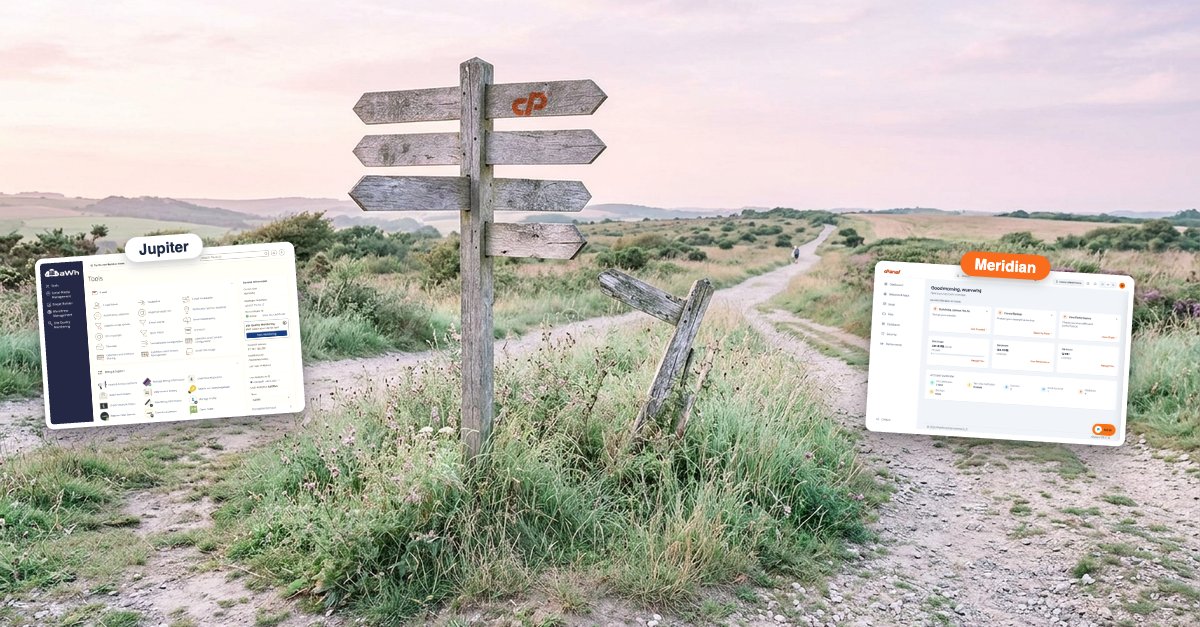
With version 138 of cPanel & WHM, a new interface has been introduced to cPanel: Meridian. This is not a replacement for the familiar Jupiter interface, but rather a second, optional theme alongside it, which organises the control panel in a completely different way. Instead of an icon grid, you’ll find workspaces grouped by task, a quick search function, dark mode and a built-in AI assistant.
Our servers are already running cPanel version 138, so if you use cPanel hosting with us, you can try it out with a single click – and switch back just as easily. We’ve had a look through it on our test account; below, we’ll show you what’s in it and what’s still missing, with screenshots and a short video.
What is Meridian?
Meridian is the new, ‘goal-oriented’ user interface from WebPros, the developer of cPanel. According to the release notes, it was introduced in version 138 and has received several updates since then. cPanel intends Meridian to complement Jupiter, not replace it: as stated in the official description, less frequently used, advanced tools will remain in Jupiter, which cPanel continues to support in full.
The theme only changes the appearance and the structure of the menus. Your domains, email accounts, databases, files and settings remain the same, whichever interface you use.
Here’s how to enable it, and here’s how to switch back
On the left-hand side of the header in the classic cPanel interface (Jupiter), you’ll find the ‘Try the new Meridian theme’ button. Clicking this will immediately load the new interface, and this is what you’ll see the next time you log in.
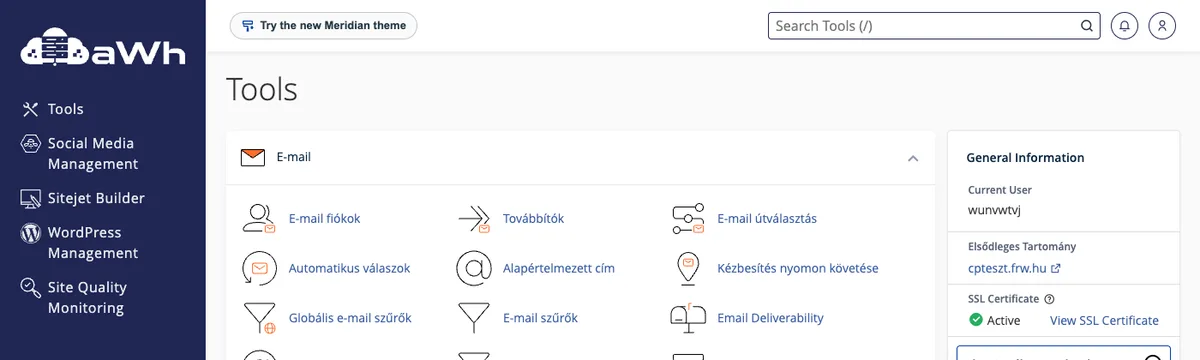
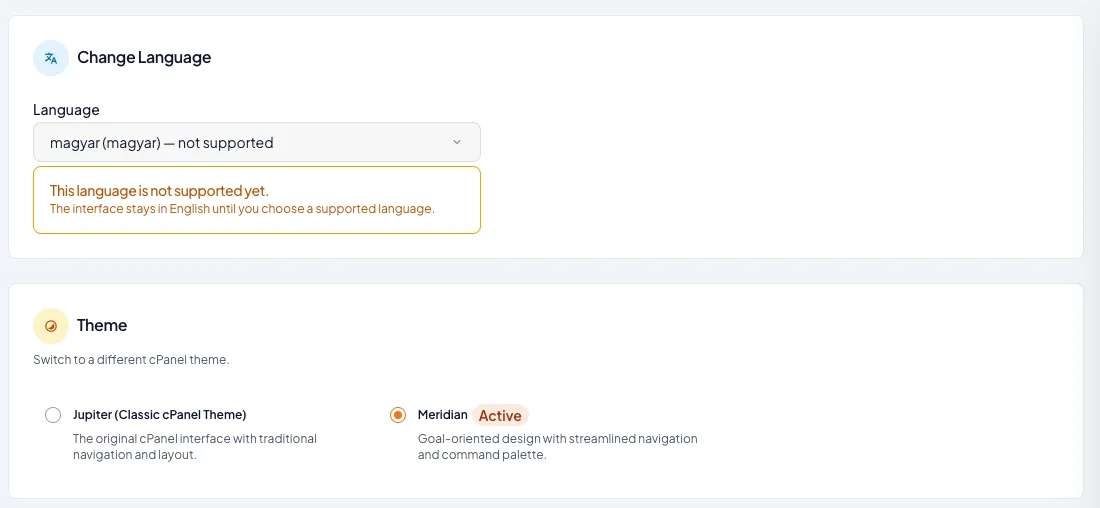
You can switch back using the ‘Classic cPanel Theme’ button in the Meridian header, or by selecting ‘Jupiter (Classic cPanel Theme)’ in the ‘Theme’ section of your Account Preferences. The first time you switch back, cPanel may ask you why you’ve made this change in a short questionnaire; feel free to close this. You can switch between the two interfaces at any time and as often as you like, as cPanel accounts at aWh are set up with the Jupiter interface by default. (According to cPanel’s documentation, accounts created exclusively with Meridian cannot switch back themselves, but this does not affect anyone here.)
In this short video, we walk you through Meridian from start-up to shutdown:
The Dashboard: tasks and overview in one place
After logging in, you’ll be greeted by the Dashboard. In the top row, ‘Suggested next actions’ recommends tasks based on your account status: on our test account, for example, these include setting up an as-yet-empty subdomain (‘Get Started’), creating a backup (‘Back Up Now’) and viewing traffic data (‘View Stats’). Below these, you can see your storage usage, bandwidth and the number of files; at the very bottom, the ‘Account overview’ summarises your SSL certificates, two-factor authentication, domains, email accounts and databases.
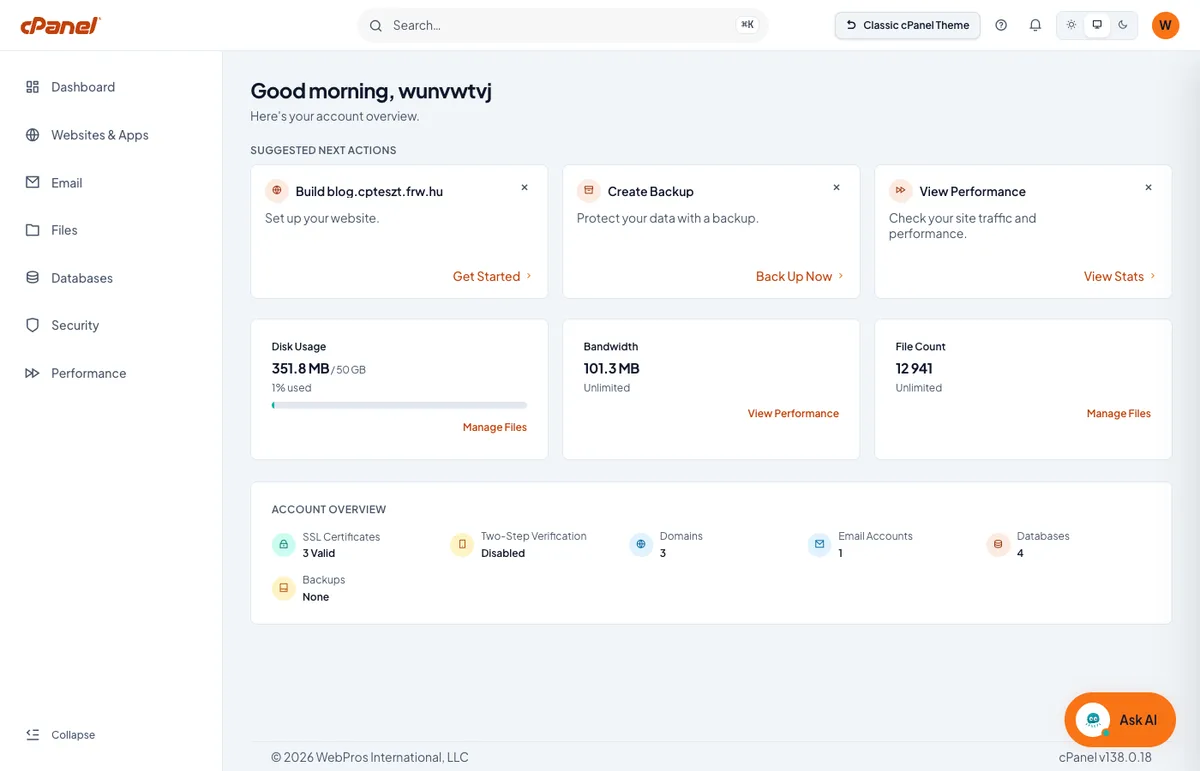
Don’t be alarmed if ‘None’ appears in the Backups row: Meridian only counts cPanel’s own, manually initiated full backups. This interface does not display the daily JetBackup backups created for cPanel hosting accounts; these remain accessible via the JetBackup 5 menu in the classic interface. We’ve covered this in detail in a knowledge base article demonstrating how to restore from these backups.
Six workspaces instead of the icon grid
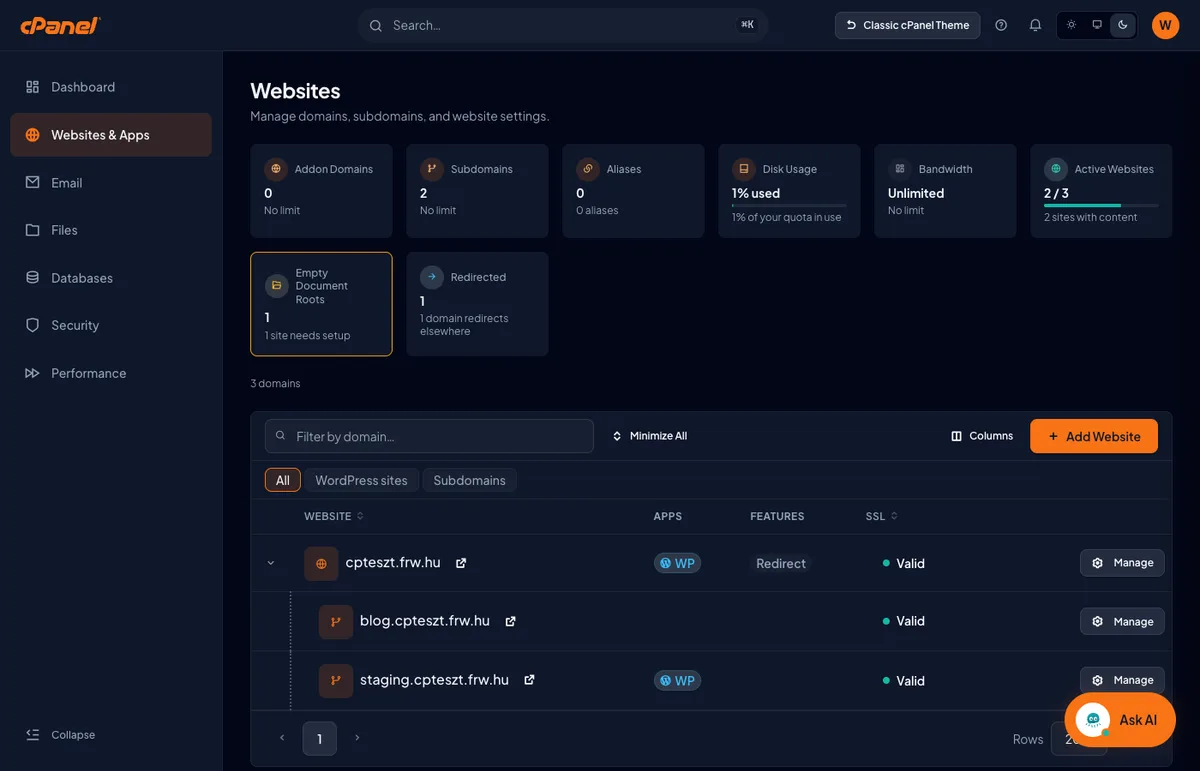
Jupiter lists dozens of tools on a single long page, organised into groups. Meridian’s left-hand menu, by contrast, divides the account into six workspaces: Websites & Apps, Email, Files, Databases, Security and Performance. Each one features summary cards at the top, with a searchable, filterable table below them.
Websites & Apps
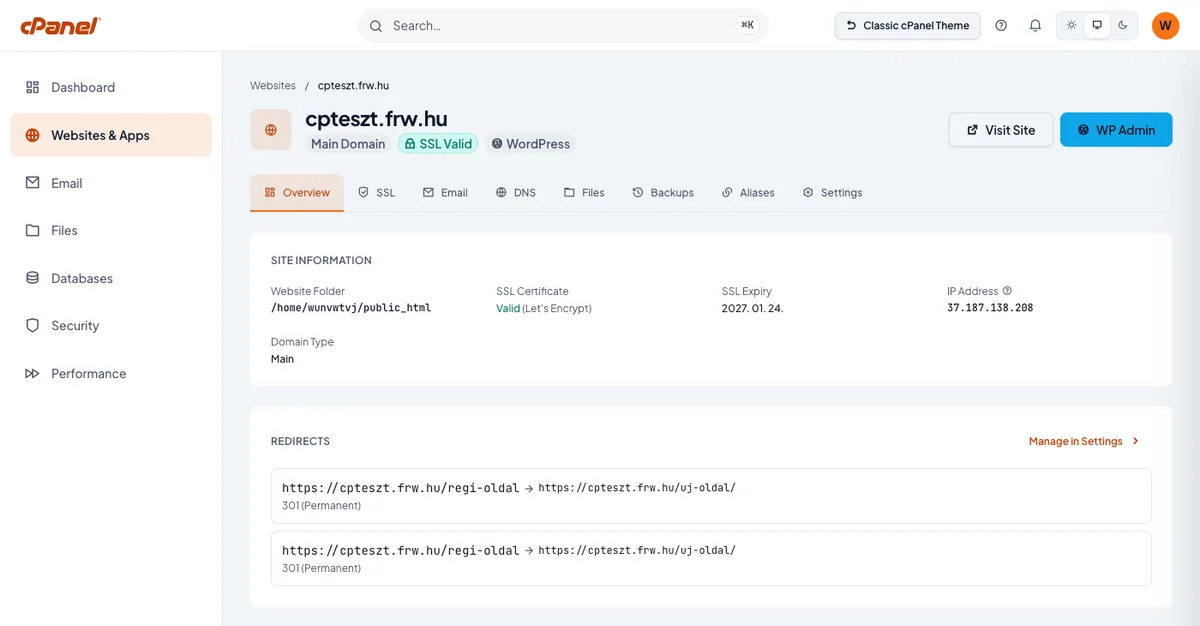
Here you can see a list of the main domain, additional domains and subdomains. Each row shows which application is running on it (for example, ‘WP’ for WordPress sites), whether there is a redirect, and whether the SSL certificate is valid. You can add a new domain or subdomain using the ‘Add Website’ button. The tabs at the top also indicate if a domain’s root directory is still empty (‘Empty Document Roots’).
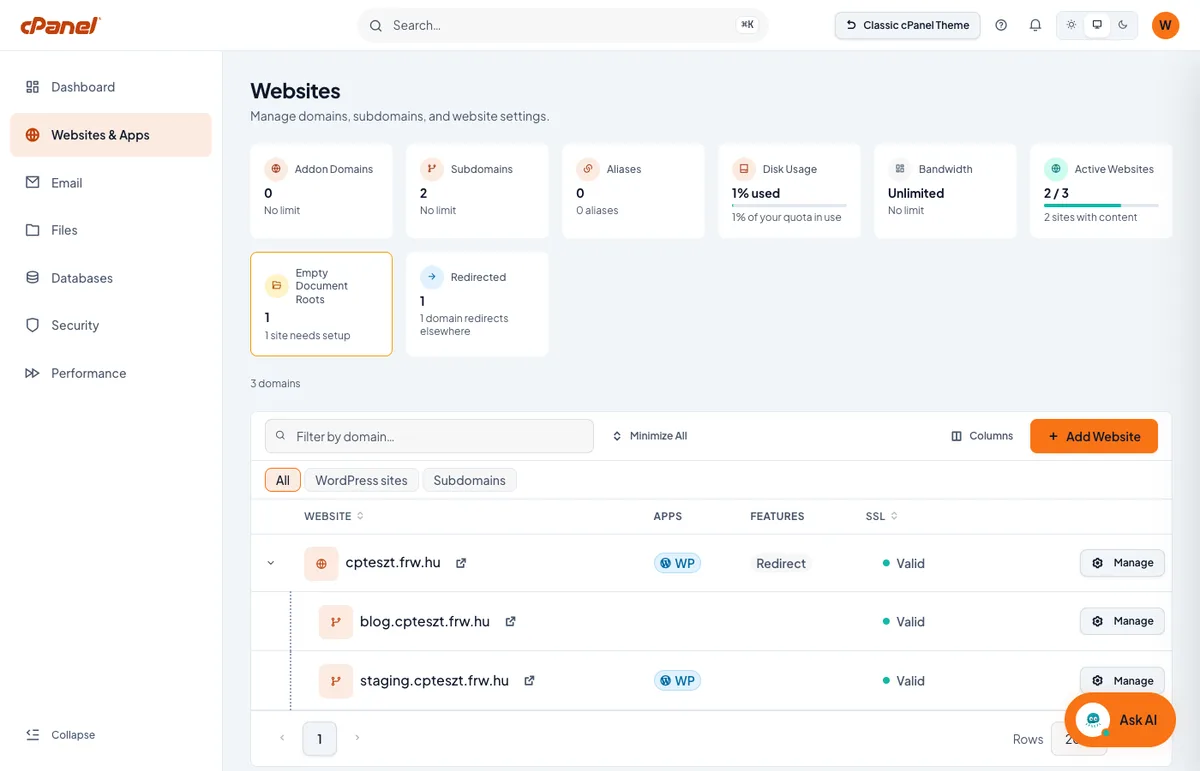
Clicking on the domain name takes you to a dedicated page for that site, featuring the Overview, SSL, Email, DNS, Files, Backups, Aliases and Settings tabs. This allows you to manage everything in one place – features that are spread across five or six separate menu items in Jupiter: DNS records, redirects, Force HTTPS, FTP accounts associated with the website and password protection for directories. For WordPress sites, clicking the ‘WP Admin’ button takes you straight to the WordPress control panel.
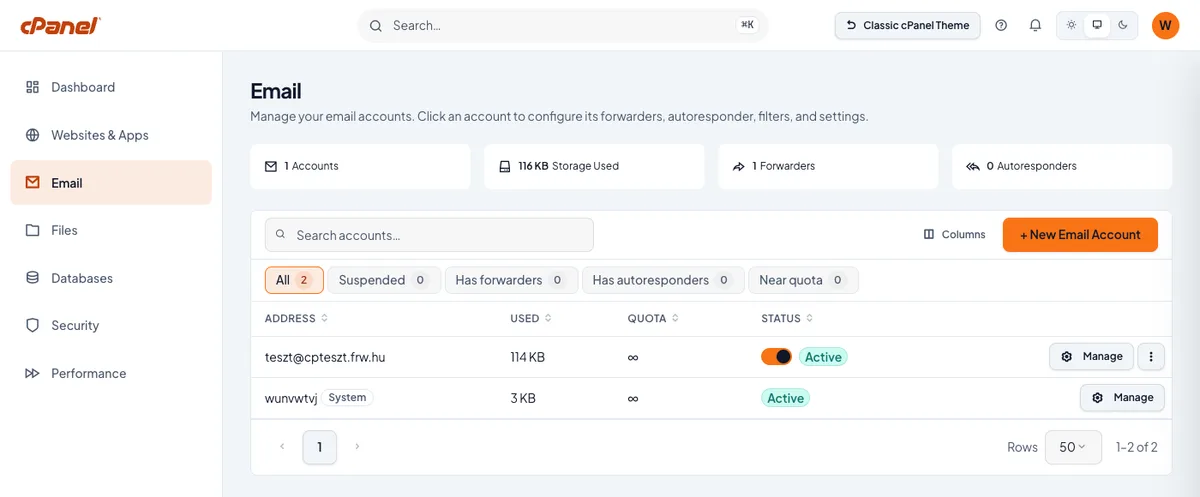
The Email dashboard lists your mailboxes along with their hosting, quota and status. Using the filter buttons, you can quickly find suspended accounts, those using forwarding or automatic replies, or those approaching their quota. You can create a new address using the ‘New Email Account’ button; by clicking on the account, you can set up forwarding, automatic replies and filters. The steps are explained in our article on creating an email account in the classic interface.
Files and Databases
In the Files workspace, the File Manager, Disk Usage, File Transfer Accounts and backups are displayed on adjacent tabs, whilst the cards also show the size of the recycle bin. The ‘Databases’ section is currently a simple list of databases and their assigned users; you can create a new database using the ‘Create Database’ button. You can access phpMyAdmin via the ‘Browse & Query Database’ command in the search bar.
Security
The Security section starts with a Security Score, alongside the status of SSL, the web firewall, two-factor authentication and HTTPS redirection. Our test account scored 63 points; according to the cards highlighted in red, two-factor authentication and HTTPS redirection were missing. On the SSL Certificates tab, you can use a toggle switch for each domain to enable automatic SSL (AutoSSL) and HTTPS redirection.
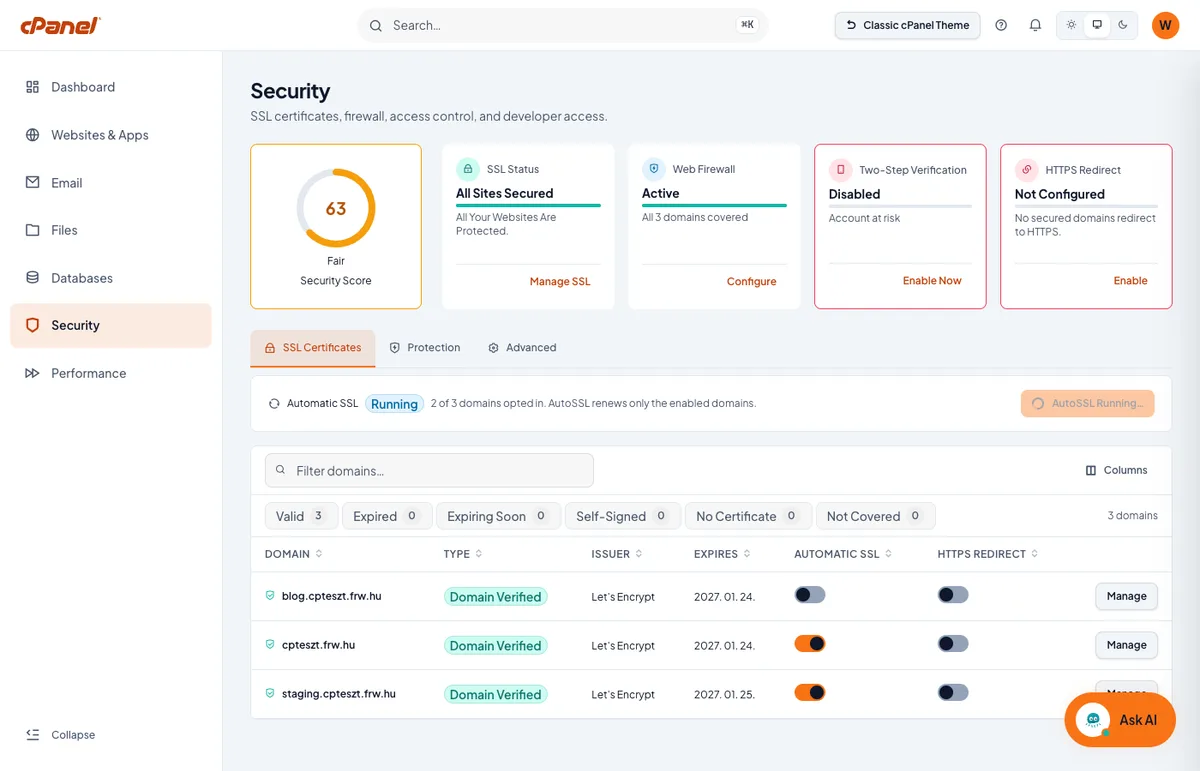
The score serves as a good reminder: if two-factor authentication is also disabled for you, you can enable it in a few minutes by following our guide.
Performance
The ‘Performance’ section displays bandwidth, visitor numbers, the number of errors, and CPU and memory usage, indicating for each how frequently the data is updated. Below this, you can drill down further by website (‘By Websites’) and by recent errors (‘Recent Errors’).
Quick search and dark mode
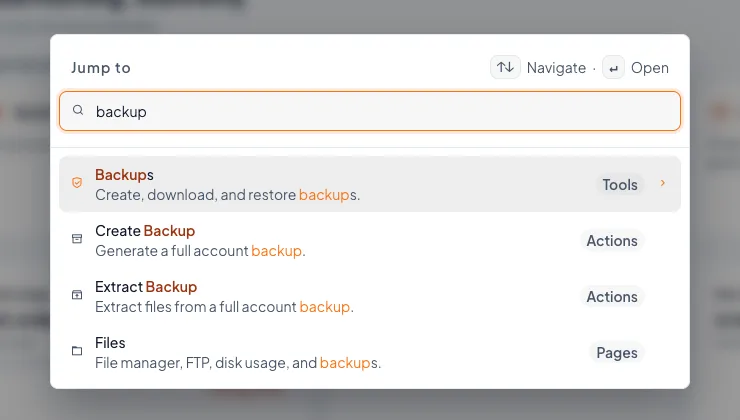
The header search bar can be opened from anywhere using the ⌘K keys (Ctrl+K on Windows and Linux) or the / key. It finds not only pages but also actions: if you type ‘backup’, it will suggest the ‘Create Backup’ and ‘Extract Backup’ actions alongside the backup page.
On the right-hand side of the header, you can switch between the light, system and dark themes. The dark theme is easier on the eyes when working in the evening.
Built-in AI assistant
The ‘Ask AI’ button in the bottom right-hand corner opens the cPanel AI assistant. The assistant knows which page you are on and suggests relevant questions (for example, ‘What domains do I have?’ or ‘How much disk space am I using?’). According to the cPanel description, it can explain features, guide you through the steps and retrieve account details (domains, hosting, email, databases, SSL status). If the provider allows it, it can also carry out simple changes, but only after the user’s approval.
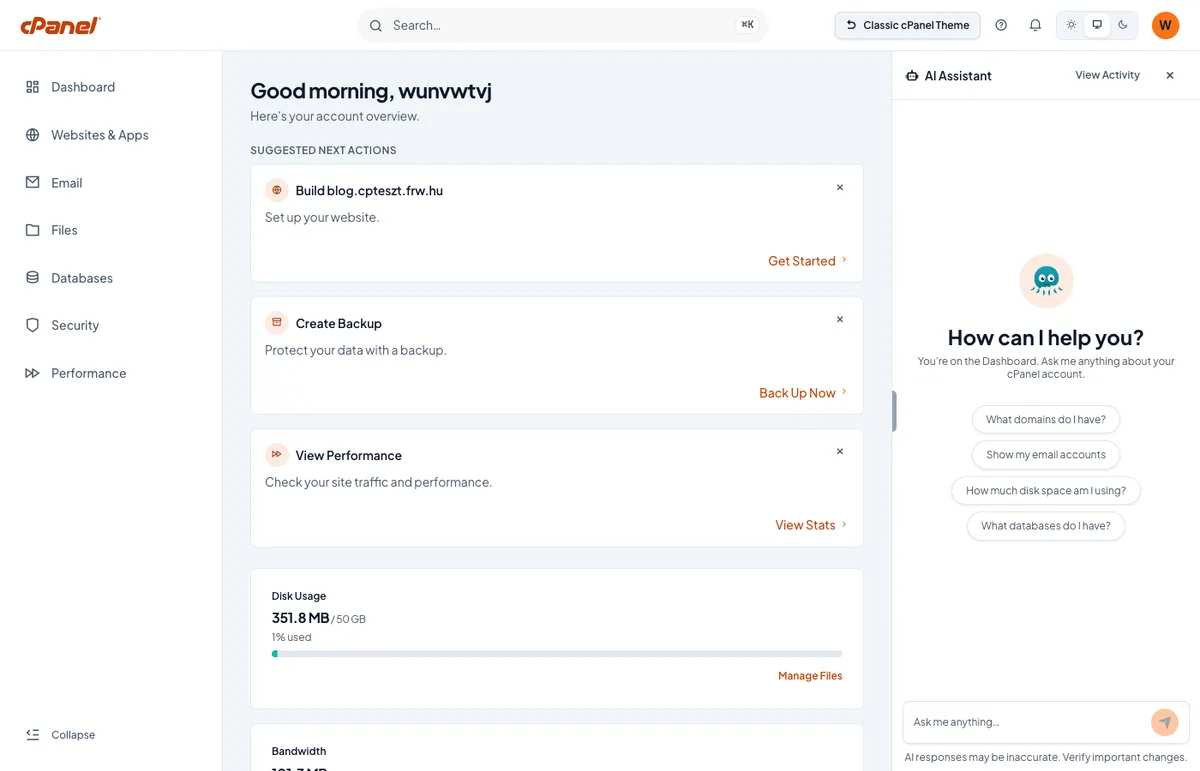
The control panel interface is in English, and as noted at the bottom of the page, the assistant’s responses may be inaccurate, so always double-check important steps.
What else is missing?
Meridian looks promising, but it doesn’t yet have all the capabilities of Jupiter.
There is no Hungarian language option. Meridian appears in English even in accounts set to Hungarian. Under the ‘Change Language’ section of the settings, it states: ‘Hungarian (magyar) — not supported’. According to the release notes, it is currently available in English, German, Spanish, French, Portuguese, Turkish, Russian, Japanese and Indonesian.
Many familiar tools are only available on the classic interface. The Meridian search function couldn’t find them on our test account, so you can still access them in Jupiter:
- WordPress Management (WP Toolkit), which allows you to install and manage WordPress sites. Meridian simply highlights the WordPress sites and takes you to the WordPress control panel via the ‘WP Admin’ button;
- JetBackup 5, for restoring daily backups;
- ImunifyAV, showing the results of the malware scan;
- Cron jobs, i.e. scheduled tasks;
- Select PHP Version: configuring the PHP version and PHP extensions;
- Set up a Node.js app and set up a Python app, for Node.js and Python applications;
- Terminal and Git™ Version Control.
cPanel itself states that Jupiter remains the interface for advanced and less frequently used tools. For the time being, therefore, the guides in our knowledge base will continue to show the classic interface, including the menu names.
Is it worth switching?
Feel free to give it a go – you’ve got nothing to lose, and you can switch back with a single click. If you mainly manage email accounts, domains and SSL certificates, Meridian is more user-friendly and faster than Jupiter, and the per-domain pages save you a lot of clicks. However, if you manage WordPress sites with WP Toolkit, restore backups or use developer tools, you’ll need to switch back regularly for the time being, and the English-language interface isn’t to everyone’s liking.
We are constantly monitoring Meridian’s development, and once Hungarian language support and the missing tools are available, we will update the knowledge base. If you have any questions about the interface or your cPanel hosting, please get in touch with us.